
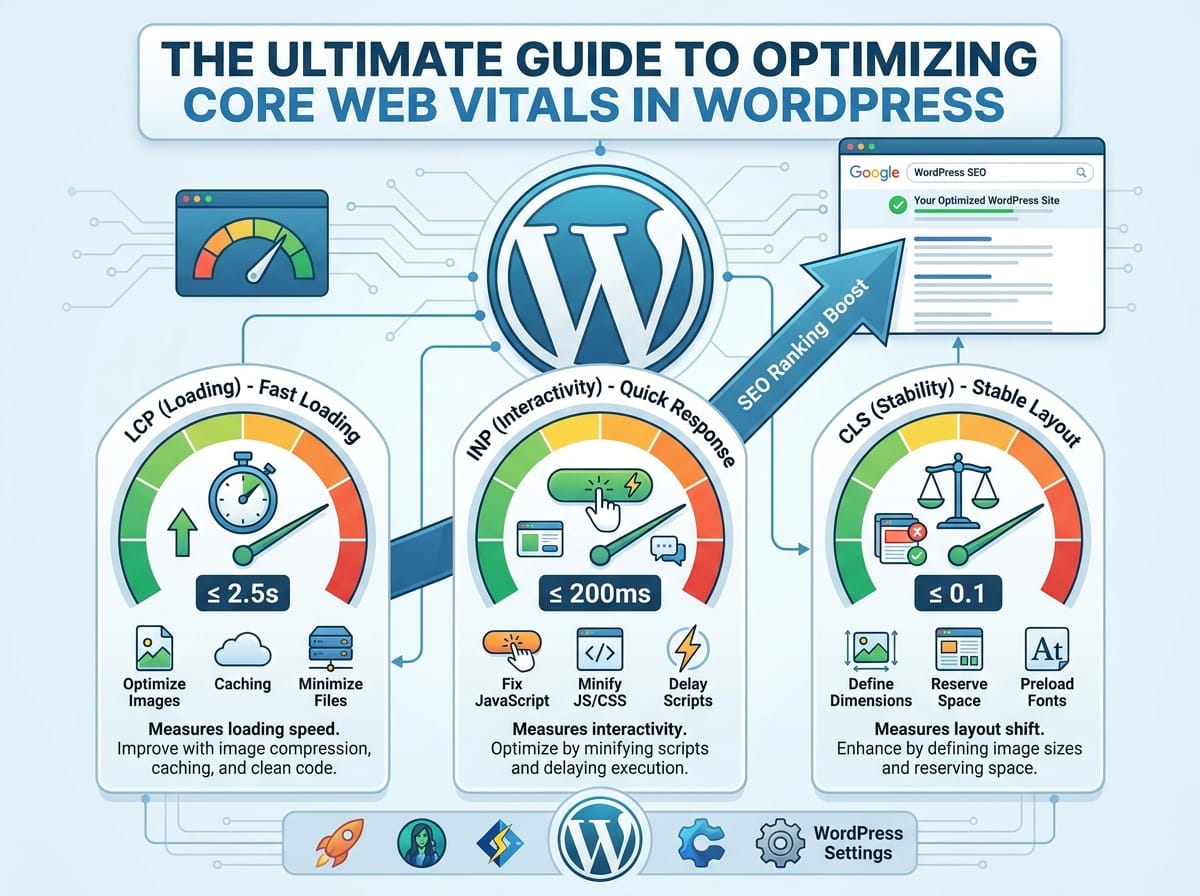
The Ultimate Guide to Optimizing Core Web Vitals in WordPress
If you want your WordPress website to rank high on search engines like Google, creating great content is only half the battle. The other half is ensuring your website provides a flawless user experience. This is where Core Web Vitals come into play. In this guide, we will break down what these metrics mean, why they matter for SEO, and how you can optimize them on your WordPress site.
ELI5: What Are Core Web Vitals?
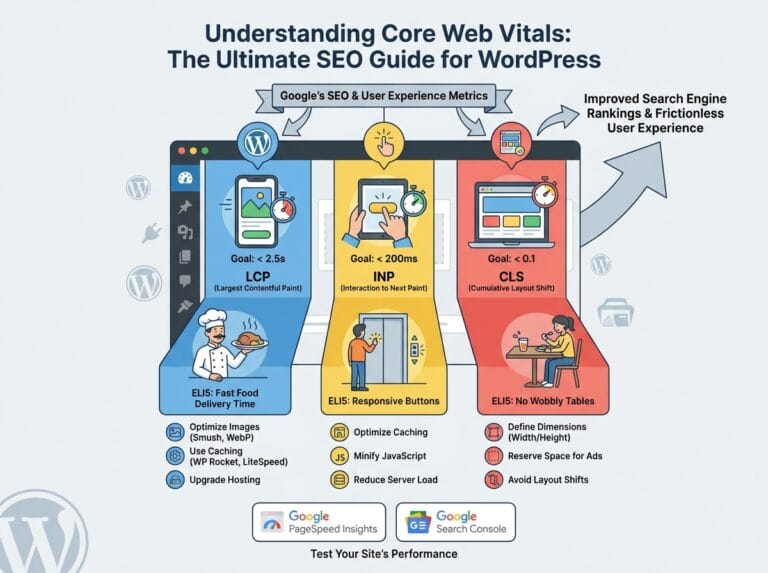
Explain Like I’m 5 (ELI5): Imagine you are visiting a brand-new restaurant. Core Web Vitals are like the restaurant’s customer service rating.
- Loading (LCP): How fast does your food arrive after you sit down? If it takes too long, you get frustrated.
- Interactivity (INP): When you wave to the waiter to ask for a napkin, how fast do they respond? If they ignore you for 5 minutes, that’s a bad experience.
- Visual Stability (CLS): Imagine you are about to take a bite of your food, and someone suddenly bumps your table, making you drop your fork. That’s annoying, right?
Google uses these three “customer service” metrics to decide if it should recommend your website (restaurant) to other people (searchers).
The Three Pillars of Core Web Vitals Explained
To improve your WordPress SEO, you need to understand the three specific technical metrics that make up the Core Web Vitals algorithm.
1. Largest Contentful Paint (LCP) – Measuring Loading Speed
LCP measures how long it takes for the largest piece of content (usually an image, video, or large block of text) to become visible on the user’s screen. For good SEO performance, your LCP should occur within 2.5 seconds of the page starting to load.
Example: You have a beautiful, high-resolution banner image at the very top of your homepage. If that image file is huge (like 5MB), it will take a long time to load on a mobile phone. That slow-loading banner will cause a poor LCP score, hurting your search rankings.
2. Interaction to Next Paint (INP) – Measuring Interactivity
INP (which replaced First Input Delay) measures how quickly your website visually responds after a user interacts with it, like clicking a button or opening a menu. A good INP score is 200 milliseconds or less.
Example: A user clicks the “Add to Cart” button on your WooCommerce store. If the website freezes for a full second before showing a loading spinner or confirming the item was added, the website feels broken and sluggish. This results in a poor INP score.
3. Cumulative Layout Shift (CLS) – Measuring Visual Stability
CLS measures unexpected layout shifts that happen while a page is loading. You want a CLS score of 0.1 or less.
Example: You are reading a blog post on your phone and go to click a link. Right before your finger touches the screen, a large advertisement suddenly loads at the top of the page. The text gets pushed down, and you accidentally click on a completely different link. This is a highly frustrating user experience and results in a terrible CLS score.
Actionable Steps to Improve Core Web Vitals in WordPress
Now that you understand the metrics, here is how you can practically optimize your WordPress site to pass Google’s assessment and boost your SEO rankings.
Optimize and Compress Your Images
Images are the number one culprit behind poor LCP scores. To fix this:
- Resize images: Never upload a 4000px wide image if it will only be displayed at 800px.
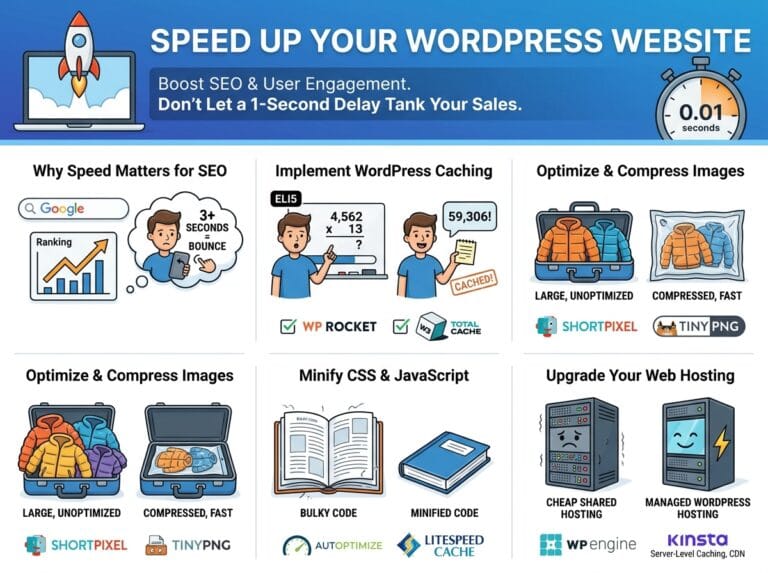
- Compress files: Use a WordPress plugin like Smush or ShortPixel to automatically compress images without losing quality.
- Convert to WebP: WebP is a modern image format that is significantly smaller than JPEG or PNG.
Implement a Robust Caching Strategy
Every time someone visits your WordPress site, your server has to process PHP scripts and pull data from a database. This takes time and hurts both LCP and INP. Caching creates a static HTML version of your site, allowing it to load instantly.
How to do it: Install a reputable caching plugin like WP Rocket, LiteSpeed Cache, or W3 Total Cache. Turn on page caching, browser caching, and GZIP compression.
Fix Layout Shifts by Defining Image Dimensions
To eliminate CLS issues, your browser needs to know exactly how much space an image or video will take up before it actually loads. If the space isn’t reserved, the content below it will jump around.
How to do it: Always include width and height attributes in your HTML image tags. Fortunately, modern WordPress editors do this automatically, but if you are adding custom HTML or using an older theme, ensure your code looks like this: <img src="image.jpg" width="800" height="600" alt="Example Image">.
Minify CSS and JavaScript Files
Bloated code is the primary cause of bad INP scores. Heavy JavaScript running in the background stops the browser from responding to user clicks.
How to do it: Use your caching plugin to “minify” CSS and JS files. This removes unnecessary spaces and comments from the code. Additionally, look for a feature called “Delay JavaScript Execution.” This prevents non-essential scripts (like chat widgets or analytics) from loading until the user actually interacts with the page.