
Did you know that a delay of just one second in your page load time can lead to a massive drop in user engagement and sales? If you are looking to speed up your WordPress website, you are in the right place. Search engines prioritize fast, responsive websites, making speed a critical factor for your overall SEO strategy.
Why WordPress Site Speed Matters for SEO
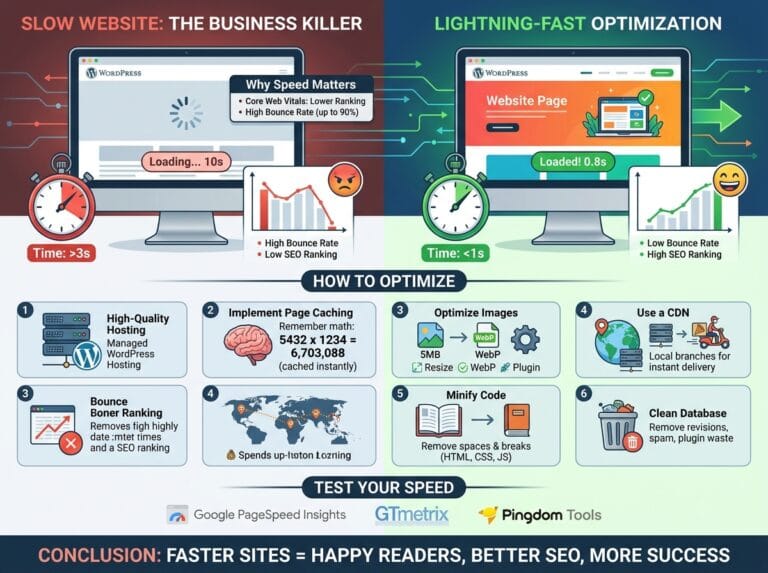
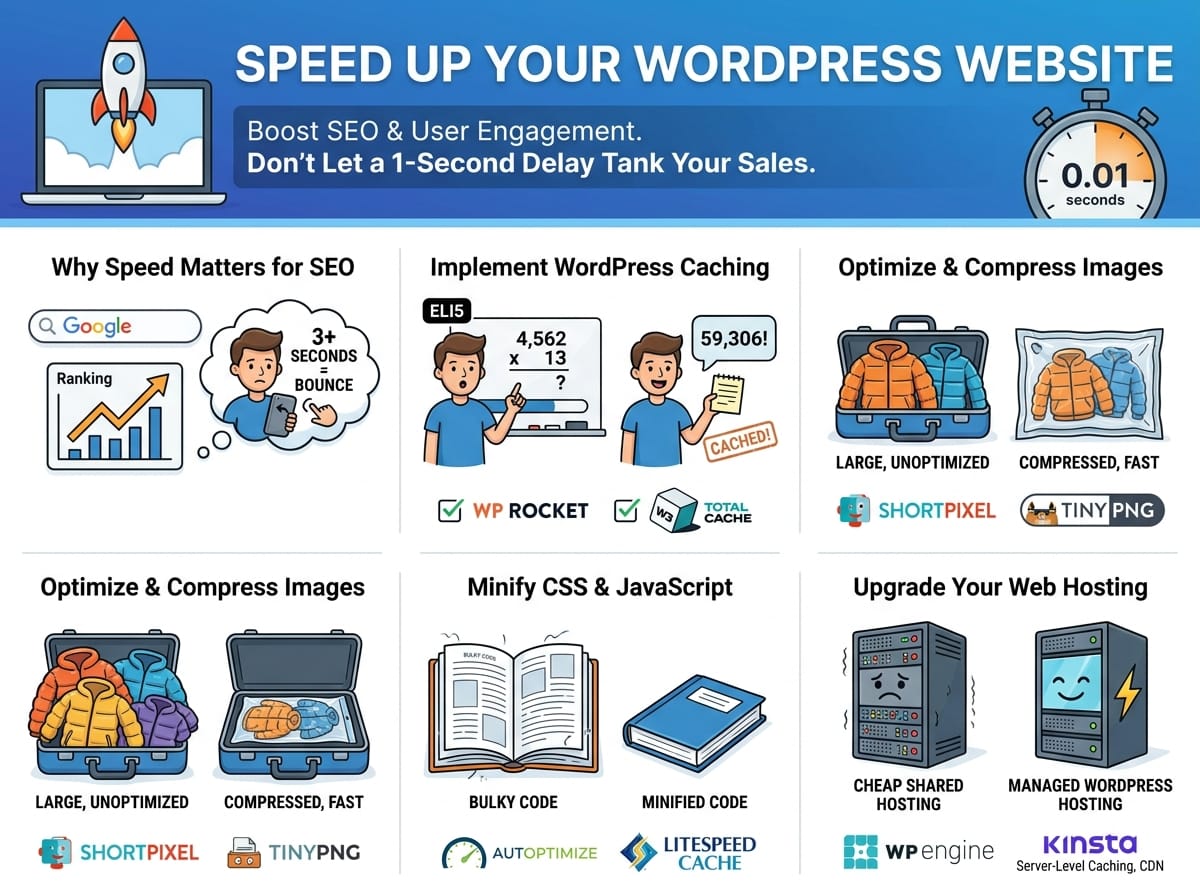
Search engines like Google use page speed as a primary ranking factor. If your WordPress site takes too long to load, search engines will penalize your rankings, pushing you further down the search results. Furthermore, human visitors have short attention spans; if your site takes more than three seconds to load, most users will hit the back button and visit a competitor instead.
Implement WordPress Caching
One of the most effective ways to improve your WordPress performance is by enabling caching.
What is Caching? (ELI5)
ELI5: Imagine a friend asks you, “What is 4,562 multiplied by 13?” You would have to sit down, do the complex math on a piece of paper, and eventually give them the answer. But if another friend walks up five minutes later and asks the exact same question, you don’t need to do the math again. You already remember the answer!
Caching does this for your website. Instead of your server doing the “hard math” of building your web page from scratch every single time a visitor clicks a link, caching saves a ready-made copy of the page and hands it directly to the next visitor. This saves a massive amount of server processing time.
Top Caching Plugin Examples
You don’t need to be a developer to implement caching. You can easily use plugins such as:
- WP Rocket: A premium, all-in-one caching solution that is incredibly user-friendly and configures 80% of web performance best practices upon activation.
- W3 Total Cache: A free, highly customizable plugin perfect for advanced users who want granular control over their server resources.
Optimize and Compress Your Images
Large, unoptimized images are the number one culprit behind slow WordPress websites. High-resolution photos directly from a camera or smartphone contain a lot of unnecessary data that browsers struggle to download quickly.
How Image Compression Works (ELI5)
ELI5: Imagine you are packing a suitcase for a winter vacation. You throw in a bunch of puffy winter jackets, and suddenly the suitcase won’t close. Image compression is like putting those jackets into a vacuum-seal bag and sucking all the extra air out. The jackets are still there, and they still look exactly the same when you unpack them, but they take up a fraction of the space. Image compression sucks the “invisible air” (unnecessary metadata) out of your image files so they travel across the internet much faster.
Examples of Image Optimization Tools
Always compress your images before or during the upload process to WordPress. Great tools for this include:
- ShortPixel: Automatically compresses images as you upload them to your WordPress media library and converts them to next-gen formats like WebP.
- TinyPNG: A free web tool where you can drag and drop your images to shrink their file size by up to 70% before uploading them to your site.
Minify CSS and JavaScript Files
Your WordPress theme and plugins rely on CSS (stylesheets) and JavaScript (interactivity) to function. Over time, these files can become bulky and slow down your site’s rendering time.
What is Minification? (ELI5)
ELI5: Imagine reading a book where the author put five extra blank spaces between every single word, and left a whole blank page between every paragraph. The book would be huge, heavy, and take forever to flip through. Minification is the process of removing all those unnecessary spaces, line breaks, and comments from your website’s code. The computer can still read the “book” perfectly, but now the file is much smaller and faster to download.
Examples of Minification Plugins
You can easily minify your website’s code using tools like:
- Autoptimize: A free WordPress plugin dedicated to minifying scripts, styles, and HTML.
- LiteSpeed Cache: A comprehensive caching tool that includes powerful built-in minification settings for both CSS and JS.
Upgrade Your Web Hosting
All the optimizations in the world won’t fix a slow web host. Your hosting provider is the foundation of your website. If you are using cheap, overcrowded shared hosting, your server response times (Time to First Byte) will suffer.
For the best SEO results, consider upgrading to Managed WordPress Hosting. Providers like WP Engine or Kinsta use servers specifically configured for WordPress, offering built-in server-level caching, automatic backups, and lightning-fast Content Delivery Networks (CDNs).