

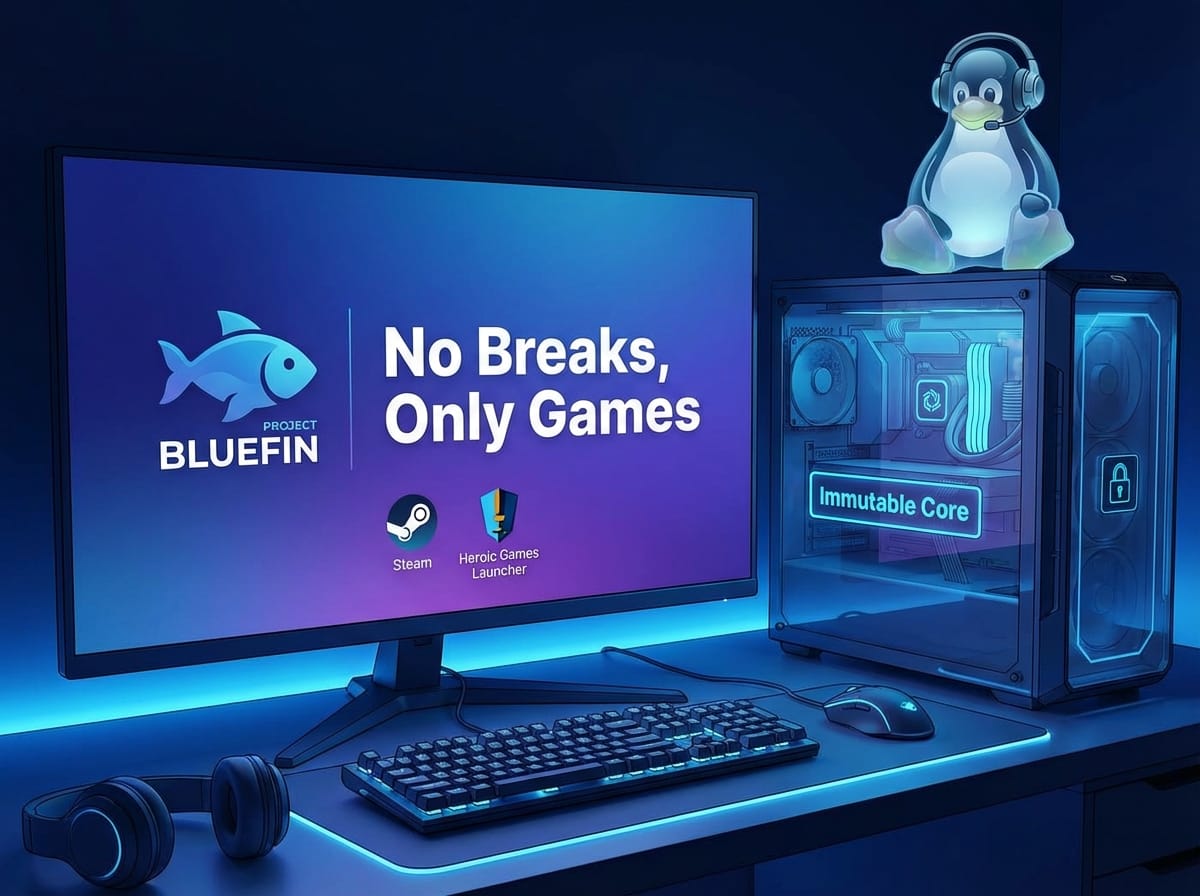
If you are tired of system updates breaking your gaming setup, you are in the right place. Welcome to the ultimate Bluefin gaming guide. Project Bluefin is rapidly becoming a favorite among Linux enthusiasts, offering an incredibly stable, maintenance-free desktop. But how does it handle gaming? The answer: brilliantly, provided you use the right tools.
In this guide, we are going to build a “No Breaks, Only Games” environment. We will walk through exactly how to set up Steam and the Heroic Games Launcher using Flatpaks to ensure a stable, high-performance Linux gaming setup.
Why Choose Bluefin for Your Linux Gaming Setup?
Before diving into the setup, it is important to understand why Project Bluefin is such a powerhouse for gamers. Bluefin is an “immutable” operating system based on Fedora Silverblue.
ELI5 (Explain Like I’m 5): What is an Immutable OS?
Imagine buying a brand-new video game cartridge. You can play the game, change the volume, and save your progress on a separate memory card, but you cannot accidentally rewrite or delete the game’s core code. That is how Bluefin works. The core operating system is “read-only.” Because you cannot accidentally overwrite critical system files, your PC simply does not break. You get rock-solid stability.
The Magic of Flatpaks for Gaming Performance
Because Bluefin is immutable, you don’t install apps the traditional way. Instead, you use Flatpaks.
ELI5: What is a Flatpak?
Imagine you are going on a camping trip. Instead of hoping the campsite has a tent, a sleeping bag, and food waiting for you, you pack a magic backpack that contains everything you need to survive. A Flatpak is that magic backpack for software. It packages the game launcher (like Steam) along with all the specific code libraries it needs to run perfectly.
Because Flatpaks run in isolated containers, they do not interfere with your core system. This means zero dependency conflicts, leading to a smoother, high-performance gaming setup.
How to Set Up Steam Using Flatpak on Bluefin
Steam is the beating heart of PC gaming. Setting up the Steam Flatpak on Bluefin is quick, but there are a few essential tweaks to ensure maximum performance and compatibility.
Step 1: Installing the Steam Flatpak
Bluefin comes with an excellent software center out of the box. Installing Steam is as easy as searching for it.
- Open the Software Center on your Bluefin desktop.
- Search for Steam.
- Make sure the source selected in the top right corner says Flathub (Flatpak).
- Click Install.
Step 2: Granting Permissions with Flatseal
Because Flatpaks live in their own secure containers (remember the magic backpack?), Steam doesn’t automatically have permission to look at other folders on your computer. This is a problem if you store your games on a secondary hard drive.
To fix this, we use a tool called Flatseal.
- Open the Software Center, search for Flatseal, and install it.
- Open Flatseal and select Steam from the list of applications on the left.
- Scroll down to the Filesystem section.
- Under Other files, click the folder icon with a plus sign to add a new directory.
- Type in the path to your secondary game drive (Example: /mnt/GameDrive).
Example: If you have a massive 2TB SSD where you keep all your games, simply giving Steam access to /run/media/ or your specific mount point in Flatseal ensures Steam will instantly recognize your existing game library.
Step 3: Enabling Proton for Windows Games
To play Windows games on Linux, you need Proton, a compatibility layer built into Steam.
- Open Steam and log into your account.
- Click on Steam in the top left corner and select Settings.
- Navigate to the Compatibility tab.
- Toggle on Enable Steam Play for all other titles.
- Select the latest stable version of Proton (e.g., Proton 8.0 or Proton Experimental) from the dropdown menu.
How to Set Up Heroic Games Launcher for Epic & GOG
Not all games live on Steam. If you want to play titles from your Epic Games Store, GOG, or Amazon Prime Gaming libraries, the Heroic Games Launcher is the best tool for the job. It is open-source, lightweight, and perfect for Bluefin.
Step 1: Installing Heroic via Flathub
Just like Steam, we want the Flatpak version to guarantee our system stays clean and unbroken.
- Open the Software Center.
- Search for Heroic Games Launcher.
- Verify the source is Flathub and click Install.
Step 2: Connecting Your Accounts
Once Heroic is installed, linking your accounts is a breeze.
- Launch Heroic.
- On the left-hand sidebar, click on Manage Accounts.
- You will see options for Epic Games, GOG, and Amazon. Click Log In on the services you use.
- Once authenticated, your entire library of games will populate in the Heroic interface.
Step 3: Optimizing Heroic for Peak Performance
Heroic needs a compatibility layer just like Steam to run Windows games. Heroic uses Wine-GE or Proton-GE.
- In Heroic, click on Wine Manager on the left sidebar.
- Download the latest version of Proton-GE (Glorious Eggroll). This is a custom version of Proton that includes specific fixes for many popular games.
- When installing a game, check the game settings to ensure it is using the Proton-GE version you just downloaded.
ELI5: What is Proton-GE?
Imagine you buy a foreign DVD, but your DVD player only speaks English (Proton). Proton-GE is like hiring an incredibly smart, multilingual translator who knows all the local slang. It translates the foreign game code into Linux code perfectly, including cutscenes and audio that regular Proton might miss.
Pro Tips for a High-Performance Flatpak Gaming Setup
Now that your launchers are installed, here are a few advanced tweaks to squeeze every frame out of your Bluefin gaming setup.
- Use GameMode: Feral GameMode tells your computer to dedicate all its processing power to your game. In Steam, right-click a game, go to Properties, and in the Launch Options box, type:
gamemoderun %command%. - Keep Flatpaks Updated: Because Bluefin is maintenance-free, it usually updates Flatpaks in the background. However, you can manually trigger updates by opening your terminal and typing
flatpak updateto ensure you have the latest performance patches. - Manage Shaders: Steam handles shader pre-caching automatically. Leave this enabled in your Steam settings. It prevents stuttering when you enter new areas in graphically intense games like Cyberpunk 2077 or Elden Ring.
Uninterrupted Gaming on Bluefin
By leveraging the immutable power of Project Bluefin and the containerized brilliance of Flatpaks, you have successfully built a gaming rig that is virtually indestructible. System updates will no longer break your GPU drivers, and your game launchers are perfectly isolated. With Steam and the Heroic Games Launcher configured, you are ready to enjoy top-tier gaming performance. No troubleshooting, no breaks—just games.