
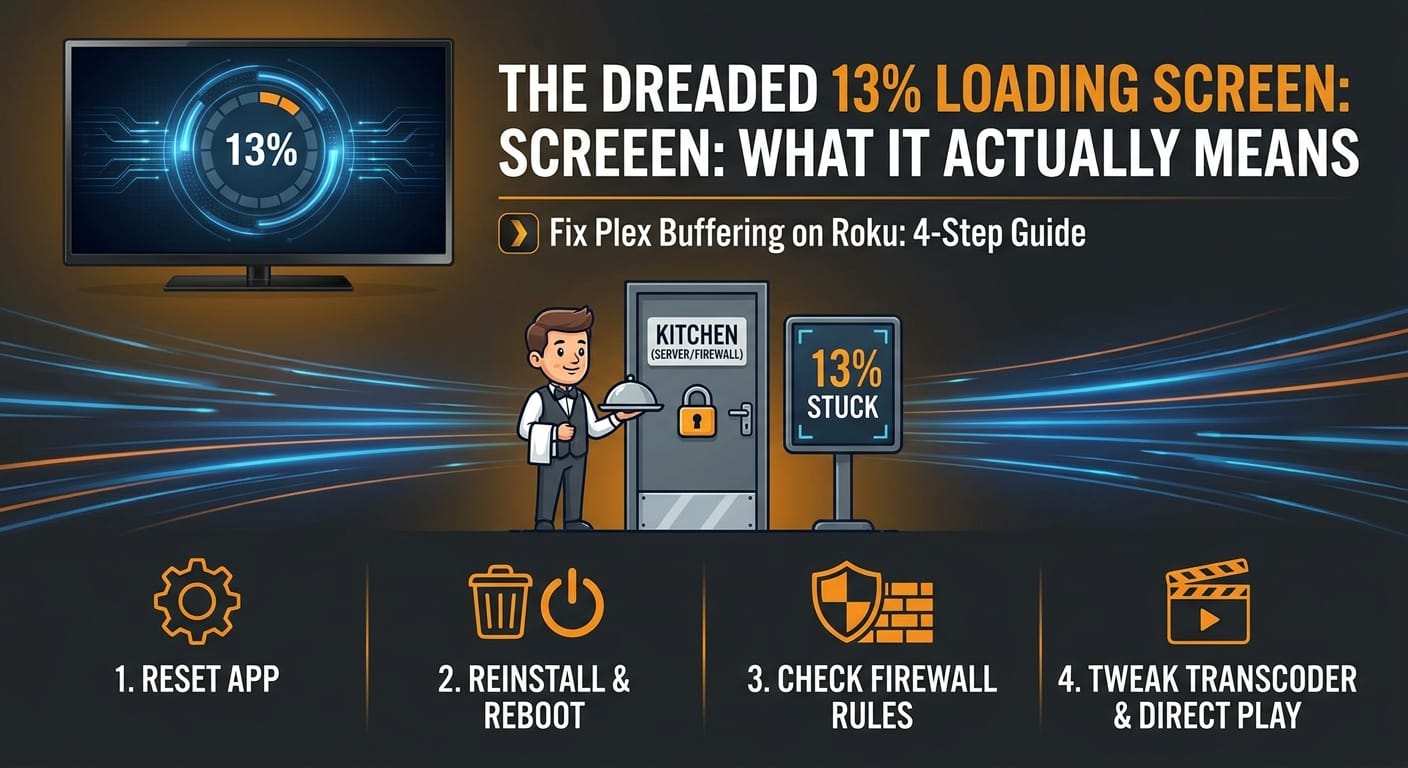
The Dreaded 13% Loading Screen: What It Actually Means
If you use Plex on a Roku TV, you have probably experienced one of the most specific and frustrating errors in home streaming: your video starts loading, the spinning wheel appears, and it completely freezes at exactly 13%. You can browse your movie library, look at the cover art, and read episode descriptions perfectly fine, but the moment you hit “Play,” playback dies on the spot.
You are not alone, and that specific number is actually your biggest clue to fixing the issue. The 13% mark does not represent how much of your video has buffered. Instead, it is the exact point in the background startup process where your Roku stops downloading text and images, and first attempts to fetch the heavy video stream from your Plex Media Server.
ELI5: Why Browsing Works but Streaming Fails at 13%
Think of your Plex server like a restaurant. Browsing your movie library is like looking at the menu online—it’s just tiny bits of text and pictures, so it loads instantly. Hitting “Play” is like actually ordering a massive five-course meal. The 13% mark is the exact moment the waiter (your Roku TV) walks into the kitchen (your PC or server) to pick up the food (the video stream). If the kitchen door is locked by a firewall, or the chef hasn’t started cooking because the transcoder failed, the waiter just gets stuck standing at the door forever.
Step-by-Step Guide to Fix Plex Buffering on Roku
Because the issue stems from either a stale app connection, a failed transcoder, or a network block, you can usually resolve it without buying any new hardware. Work through these steps in order to get your stream running smoothly again.
Step 1: Use the “Reset App” Feature
The quickest and most common fix is to clear out the stale session data on your Roku. Sometimes, the Plex app holds onto old connection data that prevents it from establishing a fresh stream.
- Open the Plex app on your Roku TV.
- Navigate to the left sidebar and select Settings.
- Scroll down and select Reset app.
Example: This is very similar to clearing the cookies and cache in your web browser when a website starts acting glitchy. It forces the Roku to forget its current state and re-authenticate with your server.
Step 2: Delete, Restart, and Reinstall the Channel
If resetting the app doesn’t push past the 13% mark, the Plex channel installation itself might be corrupted. You need a completely clean slate.
- Press the Home button on your Roku remote.
- Highlight the Plex app, press the Star (*) button, and select Remove channel.
- Crucial Step: Restart your TV by going to Settings → System → Power → System restart. Do not skip this! If you reinstall without rebooting, Roku often loads the app from its memory cache, keeping the bug intact.
- Once the TV turns back on, go to the Roku Channel Store and reinstall Plex.
Step 3: Check Your Server and Firewall Rules
If the Roku is clean, the problem is likely on the kitchen’s end—your Plex Media Server. First, try simply restarting the Plex Media Server application on your PC or NAS.
If that fails, check your network security. Your server might be silently blocking the Roku’s request for the video stream.
- Open Windows Defender Firewall (or your respective antivirus firewall).
- Ensure that Plex Media Server is allowed on both Private and Public networks.
Example: A common trigger for the 13% error is a background Windows Update. Sometimes, Windows will update and silently change your home network profile from “Private” to “Public,” which immediately triggers strict firewall rules that block local streaming connections.
Step 4: Tweak Transcoder Settings and Force Direct Play
If your network is fine, your server’s transcoder might be failing to convert the video file for the Roku. You can bypass or fix this using two methods:
On the Server (PC/NAS):
- Go to your Plex Server Settings and select Transcoder.
- Try toggling “Use hardware-accelerated video encoding” off (or on, if it was off). Save the changes and try playing the video again. Sometimes incompatible drivers cause the hardware transcoder to silently crash.
On the Roku TV:
- Open the Plex app settings on the Roku and find the Video Quality options.
- Change the Local or Home streaming quality to Original (or “Maximum”).
Example: By setting the Roku to “Original,” you are telling Plex to use “Direct Play.” If you are trying to watch a heavy 4K MKV file, Direct Play sends the file as-is, completely bypassing the transcoder. If a broken transcoder was causing your 13% freeze, forcing Direct Play will bypass the broken process entirely and start your movie immediately.