

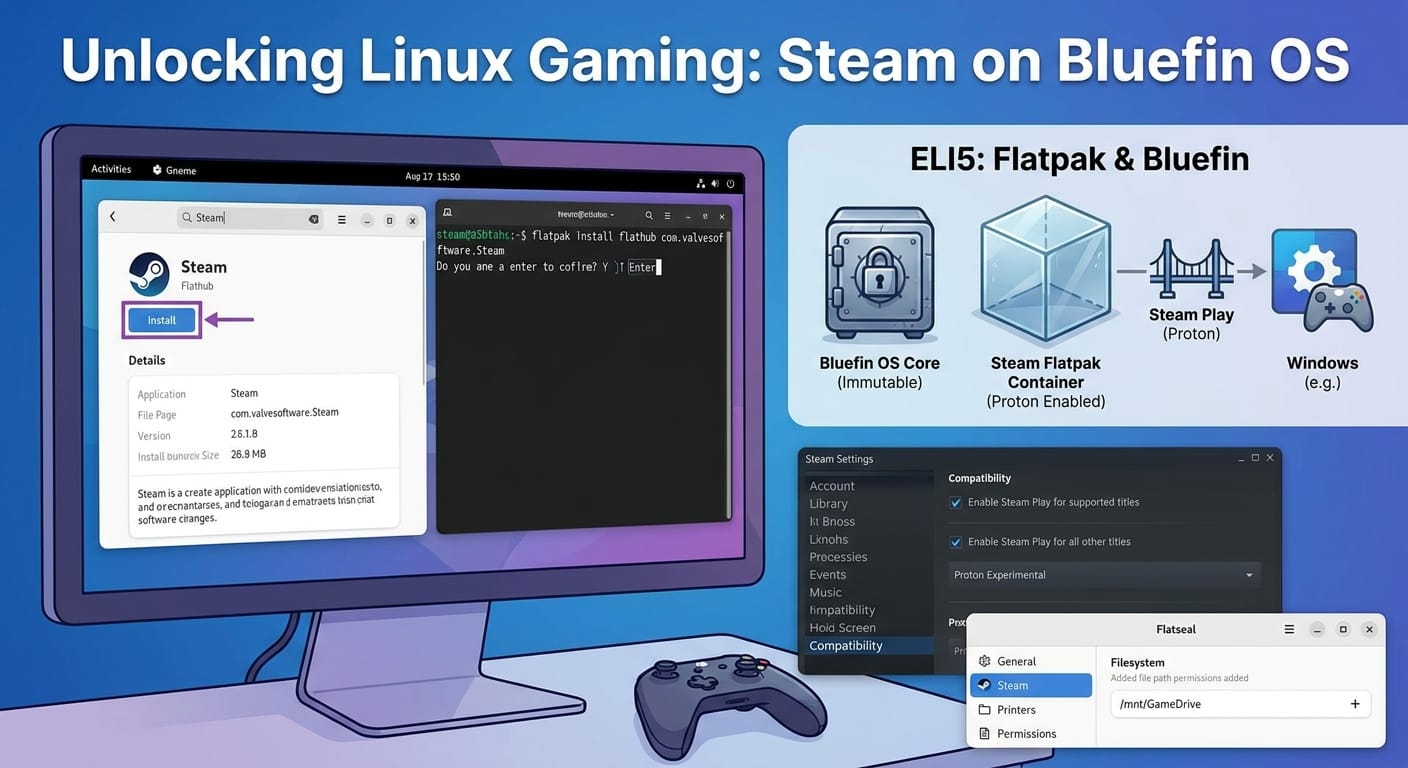
Unlocking Linux Gaming: How to Get Steam to Work on Bluefin OS
Bluefin OS is rapidly becoming a top choice for Linux users who want a stable, reliable, and maintenance-free desktop. Because it is an “atomic” (or immutable) operating system based on Fedora, it handles software a bit differently than traditional Linux distributions. If you have recently installed Bluefin and want to dive into your PC game library, you might be wondering how to get Steam up and running. Fortunately, getting Steam to work on Bluefin OS is incredibly straightforward once you understand how the system manages applications.
In this guide, we will walk you through the best methods to install Steam, how to configure it to play Windows games, and how to troubleshoot common permissions issues.
Method 1: Installing Steam via the Software Center
The easiest and most user-friendly way to get Steam to work on Bluefin OS is by using the built-in GNOME Software Center. Because Bluefin prioritizes Flatpak applications, Steam is readily available safely from the Flathub repository.
- Press the Super (Windows) key on your keyboard and type Software to open the Software Center.
- Click the search icon in the top-left corner and type Steam.
- Select the official Steam application from the search results. Verify that the source listed is Flathub.
- Click the Install button.
- Once the installation is complete, you can launch Steam directly from your application grid and log into your account.
Method 2: Installing Steam via the Command Line
If you prefer using the terminal or want a faster installation method, you can install the Flatpak version of Steam using a single command. This is highly recommended for Bluefin OS, as it aligns perfectly with the operating system’s architecture.
Step-by-Step Terminal Installation
- Open your Terminal application.
- Type or paste the following command and press Enter:
flatpak install flathub com.valvesoftware.Steam - The terminal will ask you to confirm the installation and the required dependencies. Press Y and then Enter.
- Once finished, you can launch Steam by typing
flatpak run com.valvesoftware.Steamor by clicking the Steam icon in your app menu.
ELI5: What is a Flatpak and why does Bluefin use it?
Explain Like I’m 5 (High School Edition): Imagine your computer’s core operating system is a highly secure, locked vault. In traditional operating systems, when you install an application, you let that app inside the vault where it can touch, change, and sometimes break your core system files. A Flatpak is like a soundproof, self-contained glass room built outside of that vault. When you install Steam as a Flatpak, it gets its own glass room with all the specific tools it needs to run. It cannot break the main vault (your OS). If Steam crashes or has a bug, it only messes up its own room. Bluefin uses this “glass room” approach to ensure your computer never crashes or breaks due to a bad app update.
Configuring Steam to Play Windows Games on Bluefin OS
By default, Steam will only let you download and play games that have native Linux versions. However, the vast majority of PC games are built for Windows. To play these on Bluefin OS, you need to enable Steam Play, which uses a compatibility tool called Proton.
Proton translates Windows code into Linux code in real-time, allowing complex games like Cyberpunk 2077 or Elden Ring to run seamlessly on Bluefin.
How to Enable Proton for All Games
- Open Steam and click on the Steam menu in the top-left corner.
- Select Settings from the drop-down menu.
- In the left-hand sidebar, click on Compatibility.
- Check the box that says Enable Steam Play for supported titles.
- Check the box that says Enable Steam Play for all other titles.
- From the drop-down menu beneath it, select the latest version of Proton (for example, Proton 8.0 or Proton Experimental).
- Click OK. Steam will prompt you to restart the application. Once it reboots, your entire library will be available to install!
Troubleshooting Common Steam Issues on Bluefin OS
Because Bluefin uses Flatpaks (the “glass rooms” mentioned earlier), Steam is intentionally restricted from seeing certain parts of your computer. This can occasionally cause minor hiccups, which are easily fixed.
Issue: Steam Can’t Find My Second Hard Drive
If you have a secondary SSD where you store your games, the Steam Flatpak won’t have permission to see it by default. You need to grant it access.
- Open the Software Center and install an application called Flatseal.
- Open Flatseal and select Steam from the list of applications on the left.
- Scroll down on the right side until you find the Filesystem section.
- Under Other files, click the folder icon with a plus sign to add a new directory.
- Type in the file path to your secondary drive (for example,
/mnt/GameDriveor/run/media/username/DriveName). - Close Flatseal and restart Steam. Steam will now be able to see your secondary drive and load your games.
Issue: Controllers Not Registering
Usually, Bluefin handles controllers beautifully. However, if your Xbox or PlayStation controller isn’t being recognized by Steam, ensure that you have Steam Input enabled. Go to Steam > Settings > Controller and toggle on the support for your specific controller type. This allows Steam to bridge the gap between the hardware and the Flatpak container.
Enjoy Gaming on Bluefin OS
Getting Steam to work on Bluefin OS is a quick process that perfectly showcases the strengths of an atomic, Flatpak-first Linux distribution. By utilizing the Software Center, enabling Proton, and managing permissions with Flatseal, you can transform your stable work machine into a high-performance gaming rig in less than ten minutes.