
If you are setting up a modern developer environment, you have likely heard of Bluefin. Bluefin is an advanced, cloud-native Linux distribution designed for developers who want reliability without sacrificing flexibility. By combining an unbreakable core operating system with containerized workflows, Bluefin delivers a seamless developer experience.
One of the standout features of Bluefin is its native integration of Homebrew. But why does a Linux distribution rely on a package manager originally famous on macOS? In this post, we will explore why Homebrew is the perfect companion for Bluefin and how you can use it to build the ultimate Command Line Interface (CLI) toolkit using modern alternatives like gh, bat, and tldr.
Why is Homebrew Included in Bluefin?
Bluefin uses an atomic, or “immutable,” base. This means the core operating system is read-only. It updates in a single, safe transaction—much like a smartphone update. Because you cannot install software directly into the core system the traditional way (using tools like apt or dnf), Bluefin separates your graphical apps from your terminal tools. Graphical apps are handled via Flatpak, while CLI tools are managed by Homebrew.
ELI5: The Unbreakable OS and the Magic Toolbox
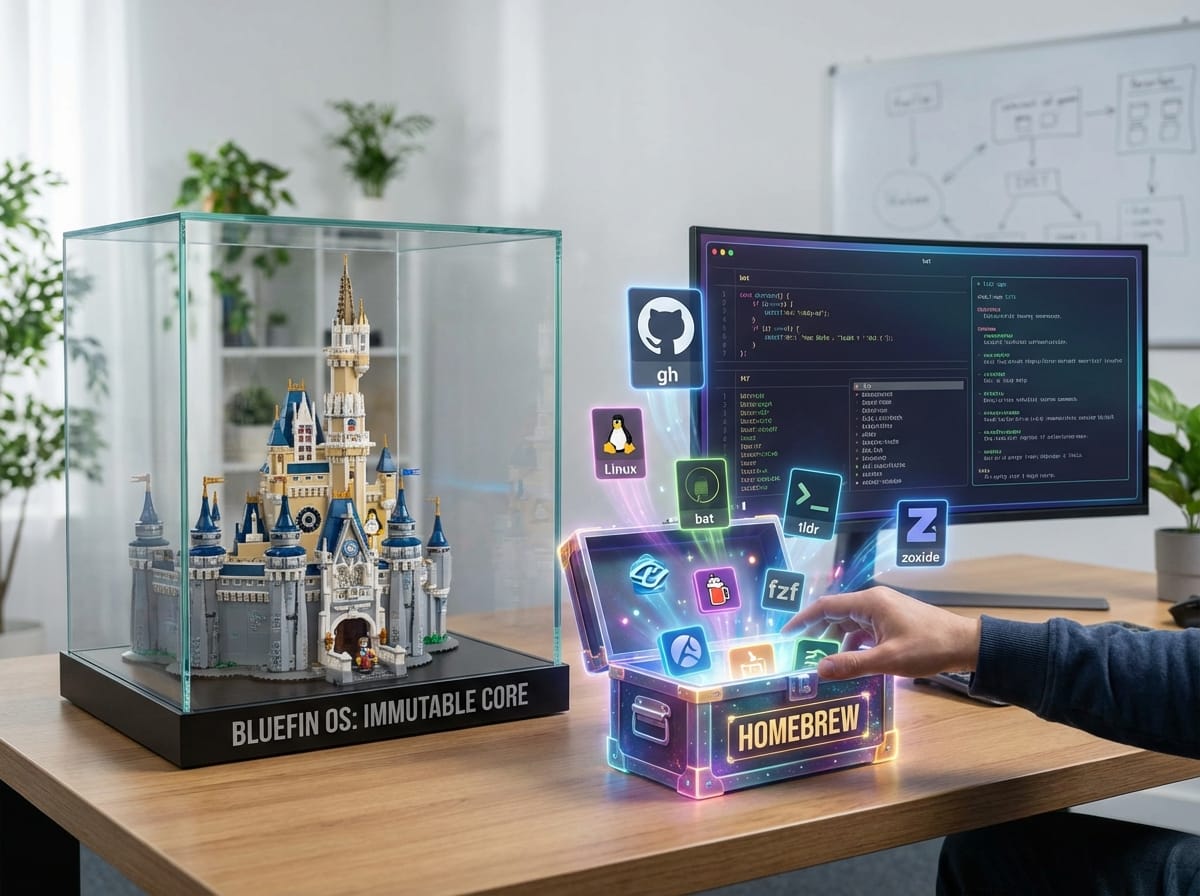
Imagine your computer’s core operating system is a beautiful Lego castle glued together and placed behind a glass case. You can look at it, and it will never accidentally break or fall apart. But as a developer, you need to build things!
Homebrew is like a personalized, magical toolbox that sits outside the glass case. You can put whatever tools you want into this box, take them out, or replace them anytime. Because the toolbox is separate, you can mess up the tools without ever ruining the beautiful Lego castle inside the glass.
Homebrew is chosen because it installs software entirely into its own isolated directory (/home/linuxbrew/). It doesn’t require root (administrator) access, it has a massive repository of up-to-date developer tools, and it works flawlessly alongside Bluefin’s architecture.
Building the Perfect CLI Toolkit: A Modern Workflow
The standard Linux commands (like cat, ls, and man) have been around for decades. While they are reliable, modern developers have built enhanced, user-friendly alternatives that can drastically speed up your workflow. Let’s look at the top CLI tools you should install via Homebrew on Bluefin.
1. gh (GitHub CLI): Bring GitHub to Your Terminal
Switching context between your terminal and a web browser to manage pull requests, issues, or repositories breaks your flow. The GitHub CLI (gh) brings the entire GitHub experience directly into your terminal.
Example usage:
Instead of clicking through the GitHub website to create a Pull Request, you can simply type:
gh pr create --title "Fix login bug" --body "Resolved the authentication issue on the login page."You can also view the status of your checks or review PRs without ever touching your mouse.
2. bat: A cat Clone with Wings
The traditional cat command is used to output the contents of a file to your terminal. However, reading plain white text on a black background can be difficult. bat is a modern replacement that adds syntax highlighting, Git integration, and automatic pagination.
ELI5:
catvs.batReading code with
catis like reading a dense textbook printed entirely in black and white with no paragraphs. Reading code withbatis like reading a beautifully formatted, color-coded textbook where all the important words are highlighted, making it instantly easy to understand.
Example usage:
bat package.jsonWhen you run this, bat will automatically recognize the JSON format, apply color coding to the keys and values, and display line numbers on the left side of your screen.
3. tldr: Simplified, Community-Driven Man Pages
When you don’t know how to use a command, the traditional advice is to “read the manual” using the man command. The problem? Man pages are notoriously long, complex, and lack practical examples.
The tldr tool (standing for “Too Long; Didn’t Read”) provides summarized, community-driven help pages that focus entirely on real-world examples.
Example usage:
If you forget how to extract a “tar” archive file, typing man tar gives you hundreds of lines of technical jargon. Typing tldr tar gives you exactly what you need:
$ tldr tar

  tar
  Archiving utility.

  - Create a compressed archive from a directory:
    tar -czvf target.tar.gz path/to/directory

  - Extract a compressed archive to the current directory:
    tar -xzvf source.tar.gz
4. fzf: The Command-Line Fuzzy Finder
Navigating through deep folder structures or searching through your terminal history can be tedious. fzf is a general-purpose fuzzy finder. It allows you to search for files, command history, and processes instantly by typing just a few characters of the name.
Example usage:
Press CTRL+R in your terminal. Instead of the standard, clunky reverse-search, fzf opens an interactive, searchable menu of every command you have ever typed. Just type a fragment of what you remember, and fzf finds it instantly.
5. zoxide: A Smarter cd Command
The cd (change directory) command requires you to type out the exact path to where you want to go. zoxide remembers which directories you visit most frequently, allowing you to “jump” to them from anywhere.
Example usage:
If you frequently work in /var/www/html/my-awesome-project/src/, instead of typing that entire path, you can just type:
z myzoxide will instantly teleport you to that directory based on your usage history.
How to Install Your Modern CLI Toolkit
Because Bluefin comes with Homebrew pre-configured out of the box, installing this modern toolkit takes only seconds. Open your terminal and run the following command:
brew install gh bat tldr fzf zoxideOnce installed, you can immediately begin using these tools to navigate faster, read code easier, and interact with GitHub without leaving your keyboard.
Elevating Your Developer Experience
The combination of Bluefin Linux and Homebrew offers the best of both worlds: a highly stable, unbreakable operating system paired with the most bleeding-edge developer tools available. By swapping out legacy commands for modern equivalents like bat, tldr, and gh, you create a CLI toolkit that reduces friction, prevents cognitive overload, and makes terminal work genuinely enjoyable.