

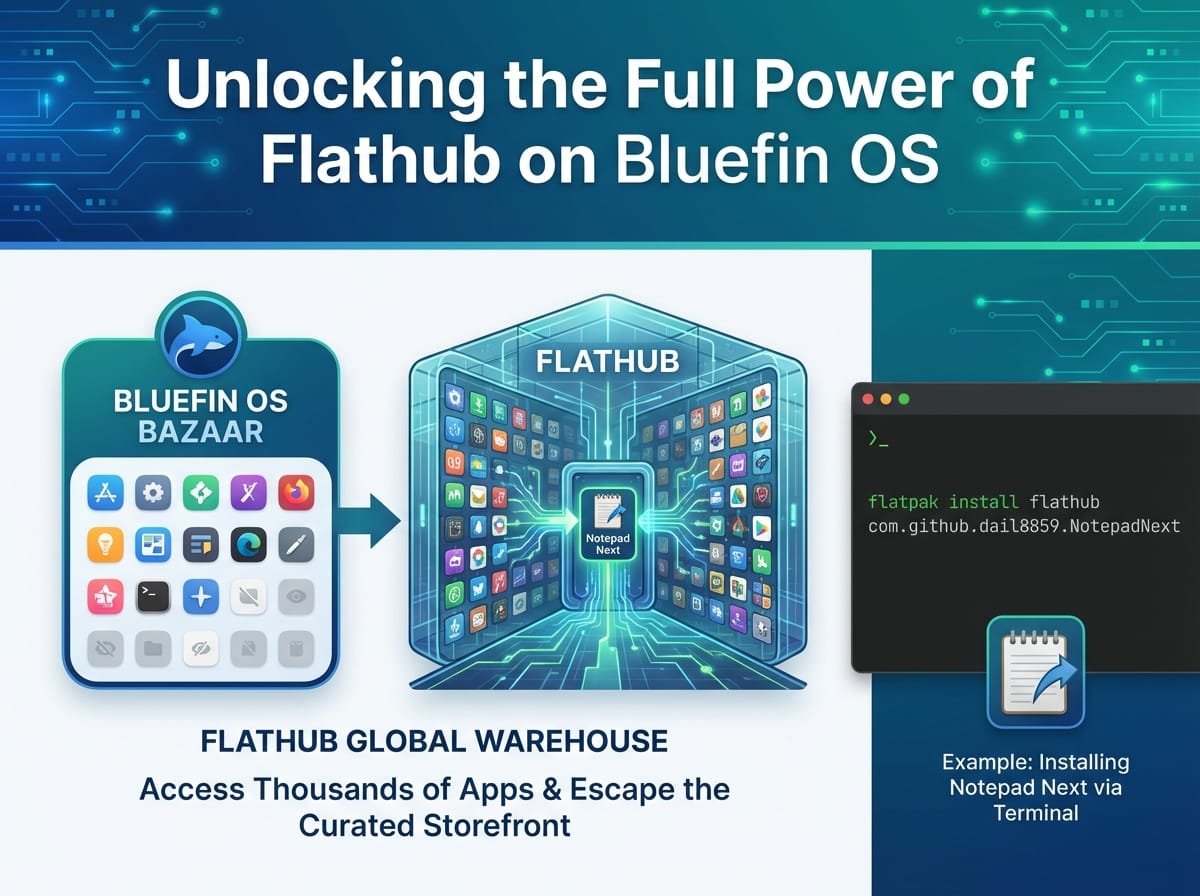
Unlocking the Full Power of Flathub on Bluefin OS
Bluefin OS is rapidly becoming a favorite for users who want a stable, modern, and zero-maintenance Linux desktop. By default, Bluefin uses a software center known as the Bazaar to help you find and install applications safely. However, because the Bazaar is heavily curated to ensure quality and prevent clutter, you might notice that some popular apps are missing from its search results.
Fortunately, Bluefin OS has built-in support for Flathub, the ultimate app store for Linux. If an app isn’t in the Bazaar, you can still easily find, install, and manage it. In this guide, we will walk you through exactly how to do this, using the popular text editor Notepad Next as our primary example.
Why Aren’t All Apps in the Bluefin Bazaar?
The Bazaar is designed to be a streamlined, user-friendly storefront. To keep things safe and simple, the developers of Bluefin curate the list of applications shown in the Bazaar. While this prevents you from accidentally installing broken or malicious software, it also means that niche tools, beta software, or newly released apps might be hidden from the graphical interface.
ELI5: What are Flatpaks and Flathub?
If you are new to Bluefin OS or Linux in general, the terms “Flatpak” and “Flathub” might sound confusing. Let’s break it down:
Explain Like I’m 5 (ELI5):
- Flatpak: Imagine you want to mail a toy to a friend, but you don’t know what kind of house they live in. A Flatpak is like a magical shipping box. No matter what kind of house (Operating System) your friend has, this box guarantees the toy will fit through the door and work perfectly right out of the box, because it includes its own batteries and instructions.
- Flathub: If Flatpak is the magical box, Flathub is the giant global warehouse where all of these boxes are stored. It is the central website where app developers upload their software for everyone to download.
How to Find Flathub Apps Not in the Bazaar
If you search the Bazaar for an app and it comes up empty, don’t give up. You have two highly effective ways to search the main Flathub repository directly.
Method 1: Searching the Flathub Website
This is the most user-friendly way to discover new software.
- Open your web browser and navigate to flathub.org.
- Use the search bar at the top to type in the name of the app you want (e.g., “Notepad Next”).
- Click on the app in the search results to view its store page.
- Scroll down to the bottom of the app’s page. You will see a section labeled Manual Install containing a few lines of terminal code. Keep this page open; you will need this code!
Method 2: Using the Terminal to Search
If you prefer feeling like a hacker, you can search Flathub directly from your computer’s terminal.
- Open your Terminal application.
- Type the following command and press Enter:
flatpak search [app name] - For example, typing
flatpak search notepadwill return a list of all notepad applications available on Flathub, along with their Application IDs.
Example: Installing Notepad Next on Bluefin OS
Let’s put this into practice. You want to install Notepad Next (an excellent alternative to Notepad++), but it isn’t showing up in the Bluefin Bazaar. Here is exactly how to get it onto your system.
Step 1: Get the Installation Command
By following “Method 1” above, you found Notepad Next on Flathub.org. At the bottom of the page, Flathub gives you the exact Application ID: com.github.dail8859.NotepadNext.
Step 2: Run the Install Command
Open your Terminal and paste the installation command provided by Flathub:
flatpak install flathub com.github.dail8859.NotepadNextPress Enter. The terminal will ask you to confirm the installation (usually by typing “Y” for Yes). It will then download the magic Flatpak box from the Flathub warehouse and install it on your Bluefin OS.
Step 3: Running Your New App
Once the installation is complete, Notepad Next will automatically appear in your standard app launcher, just like any other app. You can click its icon to open it. Alternatively, if you want to launch it from the terminal, you can use:
flatpak run com.github.dail8859.NotepadNextHow to Manage Your Flathub Apps Properly
Installing apps via the terminal is only half the battle. To keep your Bluefin OS running smoothly, you need to know how to manage, update, and remove these applications.
Updating Your Apps
One of the best things about Flatpak is how easy it is to keep everything up to date. While Bluefin OS handles many updates automatically, you can manually force all your Flatpak apps to update to their newest versions by opening the terminal and typing:
flatpak updateThis command checks the Flathub warehouse for newer versions of your installed apps and downloads them instantly.
Uninstalling Apps You No Longer Need
If you decide you don’t like Notepad Next and want to reclaim your hard drive space, you shouldn’t just delete the app icon. You need to uninstall it properly. To do this, you need the app’s Application ID.
Open your terminal and type the uninstall command followed by the Application ID:
flatpak uninstall com.github.dail8859.NotepadNextPress Enter and confirm. The app will be safely and completely removed from your system.
Cleaning Up Leftover Files
Sometimes, when you uninstall apps, they leave behind unused shared files (called runtimes). To keep your Bluefin OS perfectly clean, it is good practice to occasionally run this command:
flatpak uninstall --unusedELI5: This is like taking out the digital trash. It looks for leftover instruction manuals or empty boxes from toys you already threw away, and tosses them in the garbage to free up space in your room.
Expanding Your Bluefin OS Experience
By understanding how to bypass the curated Bazaar and interact directly with Flathub, you unlock the absolute full potential of Bluefin OS. You get the incredible stability and reliability of the Bluefin base system, combined with access to thousands of cutting-edge applications from the global Linux community. Happy exploring!