

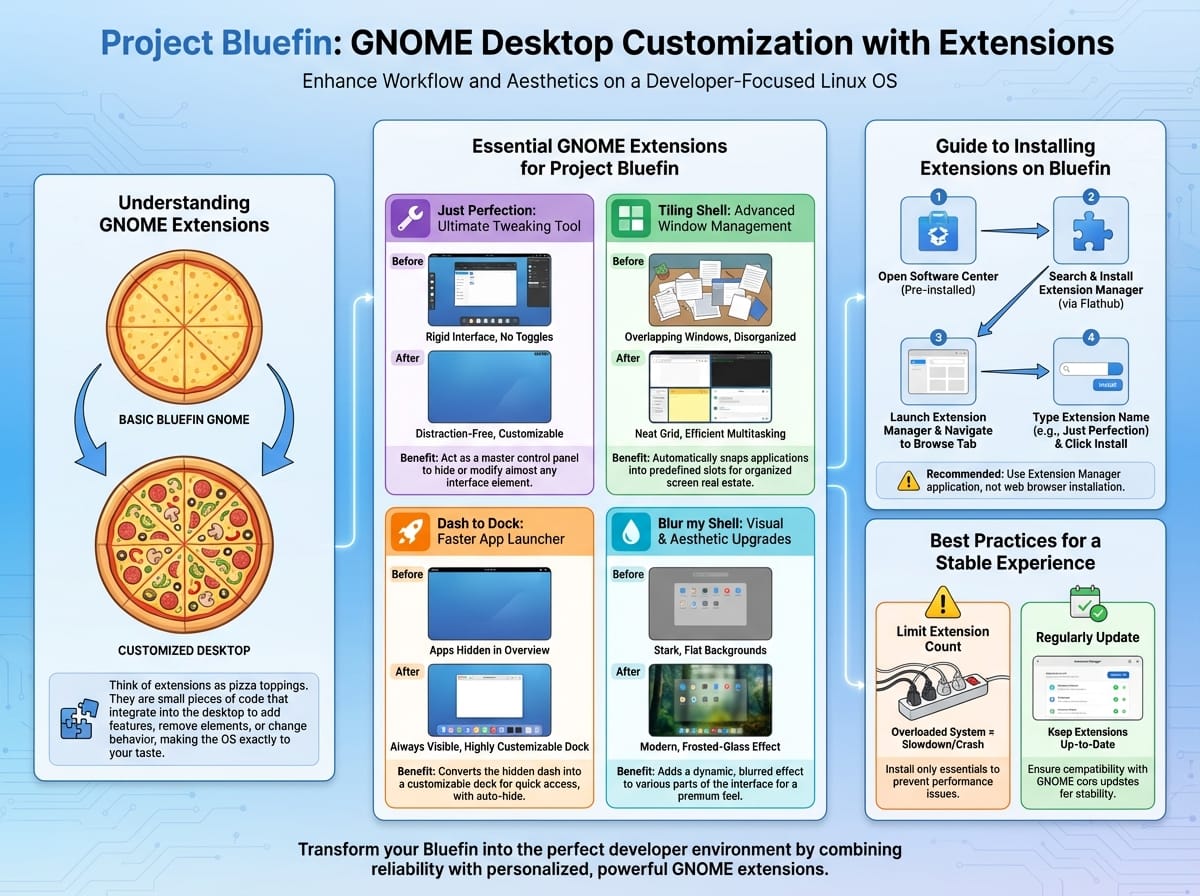
Project Bluefin is a reliable, developer-focused Linux operating system that delivers a pristine GNOME desktop experience right out of the box. While the default setup is highly polished, adding personal touches transforms a good daily driver into a perfect workflow environment. By leveraging the power of GNOME extensions, you can easily mold the Bluefin interface to match your exact preferences, boosting both your system aesthetics and daily productivity.
Understanding GNOME Extensions
To grasp the concept of GNOME extensions, think of your Bluefin operating system as a standard cheese pizza. It is delicious and functional entirely on its own. However, to make it exactly to your taste, you add toppings like pepperoni or extra mushrooms. GNOME extensions are the toppings for your desktop. They are small, targeted pieces of software code that integrate directly into the desktop environment to add new features, remove annoyances, or completely change how the interface behaves.
Essential GNOME Extensions for Project Bluefin
Customizing your desktop requires the right tools. Below is a curated list of the most impactful extensions to install on your Bluefin system.
Just Perfection: The Ultimate Tweaking Tool
The GNOME desktop is notoriously rigid, offering very few built-in toggles to change the interface. The Just Perfection extension solves this entirely by acting as a master control panel for your desktop elements.
This extension allows you to turn almost any part of the user interface on or off. For example, if you prefer a distraction-free writing environment, you can use Just Perfection to completely hide the top panel, remove the clock, and disable the system tray. Alternatively, you can tweak specific behaviors, such as disabling the startup animation to get to your work faster or changing the size of the application icons in the menu.
Tiling Shell: Advanced Window Management
Multitasking on modern ultra-wide monitors can be frustrating when dealing with floating application windows. Tiling Shell revolutionizes how you organize your screen real estate.
To understand Tiling Shell, imagine your computer monitor is a physical office desk. Normally, when you open multiple programs, they act like scattered papers overlapping each other in a messy, disorganized pile. Tiling Shell acts like a rigid desk organizer with predefined slots. When you open an application, the extension automatically snaps it into a neat, side-by-side grid. This allows you to view your web browser, terminal, and note-taking app simultaneously without ever needing to drag edges or manually resize windows.
Dash to Dock: A Faster App Launcher
By default, the GNOME desktop hides your favorite applications behind the Activities overview screen, requiring an extra click or keystroke to access them. Dash to Dock brings your applications to the forefront.
This extension takes the hidden application dash and converts it into a highly customizable dock. You can place it at the bottom of the screen to mimic macOS, or move it to the left side to mimic Ubuntu. It includes intelligent auto-hide features, meaning the dock will gracefully slide out of the way when a window maximizes, ensuring you never lose valuable screen space.
Blur my Shell: Visual and Aesthetic Upgrades
Customization is not just about productivity; it is also about visual appeal. Blur my Shell adds a modern, frosted-glass effect to various parts of the GNOME interface.
Instead of the stark, solid gray backgrounds seen in the default application overview or top panel, Blur my Shell dynamically blurs your current desktop wallpaper behind these elements. For example, if you have a vibrant nature wallpaper, opening your application menu will display a beautifully softened, frosted-glass version of that same forest scene, giving Bluefin a premium, modern feel.
Guide to Installing Extensions on Bluefin
Because Project Bluefin is built on an immutable, flatpak-first architecture, the traditional method of installing extensions via a web browser is not the recommended path. Instead, you should use a dedicated application to manage your desktop additions safely.
- Step 1: Open your pre-installed software center.
- Step 2: Search for an application called Extension Manager (identified by a blue puzzle piece icon) and install it via Flathub.
- Step 3: Launch Extension Manager and navigate to the Browse tab located at the top of the window.
- Step 4: Type the name of the desired extension, such as Just Perfection, and click the install button.
Best Practices for a Stable Desktop Experience
While tweaking your Bluefin setup is incredibly rewarding, keeping your system fast and reliable requires a mindful approach to extensions.
First, limit the total number of extensions you install. Installing dozens of extensions at once is like plugging too many appliances into a single electrical outlet; eventually, the system will slow down or crash. Stick to the essentials that directly improve your daily workflow.
Second, ensure you regularly update your extensions through the Extension Manager app. GNOME updates its core code frequently, and extension developers release patches to maintain compatibility. Keeping everything up to date guarantees that your personalized Bluefin desktop remains as stable and secure as the day you installed it.