
The Ultimate Guide to Optimizing Your WordPress Website for Search Engines
Ranking on the first page of search engines can transform your website from a quiet corner of the internet into a bustling hub of traffic. While WordPress is naturally structured to be search-engine friendly right out of the box, relying on its default settings isn’t enough to beat the competition. In this comprehensive guide, we will walk through actionable, proven strategies to optimize your WordPress site and climb the search engine rankings.
Why Search Engine Optimization (SEO) Matters
Before diving into the technical settings, it is crucial to understand why we put so much effort into optimizing our websites. SEO drives organic traffic, which means you are attracting visitors who are actively searching for the solutions, products, or content you provide. Unlike paid advertising, organic traffic is free and highly sustainable over the long term.
ELI5: What is SEO and How Do Search Engines Work?
ELI5 (Explain Like I’m 5): Imagine the internet is a massive library with billions of books, but there is no central catalog, and the books are scattered everywhere. Google is the super-librarian. When someone walks in and asks for a “recipe for chocolate chip cookies,” the librarian needs to find the absolute best recipe instantly.
SEO (Search Engine Optimization) is basically how you format your book so the librarian knows exactly what it is about. By putting “Chocolate Chip Cookie Recipe” in big letters on the cover (headings), writing a great summary on the back (meta descriptions), and having other famous bakers recommend your book (backlinks), you make it easy for the librarian to confidently hand your book to the reader.
Essential WordPress SEO Settings
The foundation of good SEO starts in your WordPress dashboard. Before you write a single piece of content, you need to ensure your website is configured correctly to speak the same language as search engine bots.
Ensure Your Site is Visible to Search Engines
WordPress has a built-in feature that hides your site from search engines. This is incredibly useful while you are building or redesigning your site, but leaving it on will destroy your SEO.
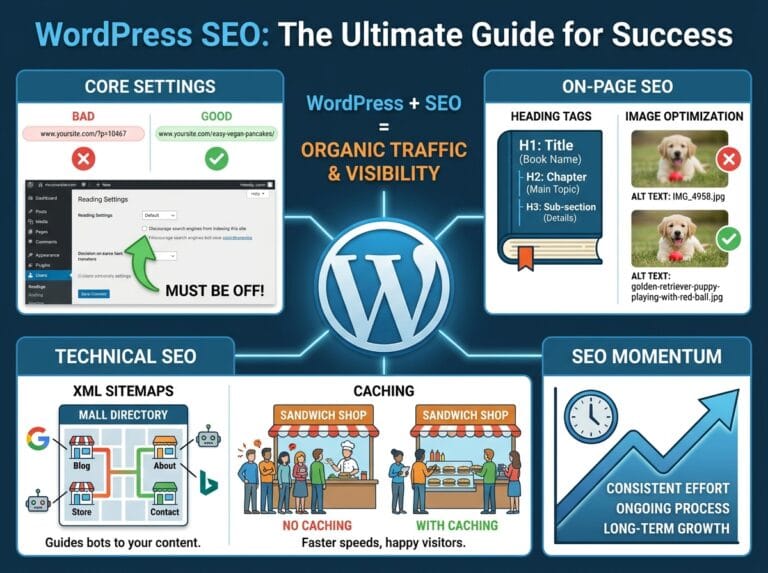
To check this, go to Settings > Reading in your WordPress dashboard. Scroll down to the “Search engine visibility” section and make sure the box next to “Discourage search engines from indexing this site” is unchecked. If it is checked, Google will completely ignore your website.
Set Up SEO-Friendly Permalinks
Permalinks are the permanent URLs for your individual web pages and blog posts. By default, WordPress sometimes uses URLs that are not user-friendly or readable by search engines.
Example of a Bad URL: www.yoursite.com/?p=10467
Example of a Good URL: www.yoursite.com/homemade-chocolate-cake/
The good URL tells both the user and Google exactly what the page is about before they even click. To fix your permalinks, navigate to Settings > Permalinks and select the Post name option.
Supercharge Your Site with an SEO Plugin
While WordPress has great core features, adding a dedicated SEO plugin gives you total control over how your website appears in search results.
Choosing the Right SEO Plugin
You do not need multiple SEO plugins; you only need one robust tool. Two of the most highly recommended options are:
- Yoast SEO: The most popular choice, offering a simple traffic-light system (Red, Orange, Green) to grade your content.
- Rank Math: A lightweight, highly customizable alternative that provides built-in keyword tracking and advanced schema markup.
Once installed, these plugins allow you to easily set focus keywords, write custom descriptions for the search results, and automatically generate an XML sitemap (a roadmap of your site for Google).
Content Optimization Best Practices
Search engines rank web pages, not just entire websites. Therefore, every piece of content you publish needs to be optimized to target specific search queries.
Mastering Keyword Research
Keyword research is the process of finding out exactly what phrases your target audience is typing into Google. If you guess what people are searching for, you might create content nobody wants to read.
Example: Let’s say you sell running shoes. You might want to rank for the keyword “shoes.” However, “shoes” is too broad and dominated by massive brands like Nike and Amazon. Instead, you should target long-tail keywords—longer, more specific phrases. A great long-tail keyword would be “best trail running shoes for flat feet.” It has less competition, and the people searching for it are highly motivated to buy.
Structuring Content with Headings
Headings (H1, H2, H3) do more than just make your text look pretty; they create a hierarchy of information that search engines use to understand the context of your page.
- H1: The main title of your post. There should only be one H1 per page.
- H2: The main subtopics of your article (like chapters in a book).
- H3: Sub-sections under your H2s to break down complex ideas.
Always try to naturally include your target keywords in your H2 and H3 tags to signal to search engines what that specific section is about.
Improving Site Speed and Performance
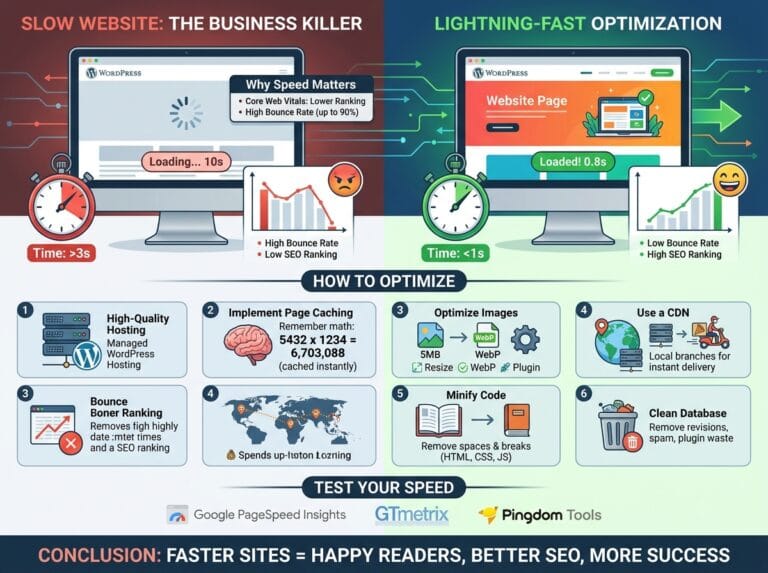
Google has officially stated that page speed is a ranking factor. If your WordPress site takes more than three seconds to load, visitors will hit the back button, signaling to Google that your site offers a poor user experience.
ELI5: What is Caching?
One of the best ways to speed up WordPress is by using a caching plugin (like WP Rocket or W3 Total Cache). But what exactly is caching?
ELI5: Imagine you run a busy burger stand. Every time a customer orders a cheeseburger, you grind the beef, slice the cheese, chop the lettuce, and bake the bun from scratch. It takes 15 minutes per customer. Eventually, the line gets too long, and people leave.
Caching is like realizing that 50 people are going to order cheeseburgers today, so you pre-make 50 cheeseburgers and keep them warm under a heat lamp. When a customer orders, you instantly hand them a burger. In the digital world, instead of your server building the web page from scratch every single time someone clicks a link, a caching plugin saves a “pre-built” version of the page and hands it to the visitor instantly, making your site load incredibly fast.
Optimize Your Images
Large, uncompressed image files are the number one cause of slow WordPress sites. Before you upload any image to your media library, ensure you do the following:
- Resize the image: You rarely need an image wider than 1200 pixels on a blog. Do not upload massive 4000-pixel photos straight from your camera.
- Compress the file: Use a plugin like Smush or ShortPixel to automatically shrink the file size of your images without losing visible quality.
- Use Alt Text: Always add descriptive “Alternative Text” to your images in the WordPress media library. This helps visually impaired users understand the image and gives search engines more context about your content.