

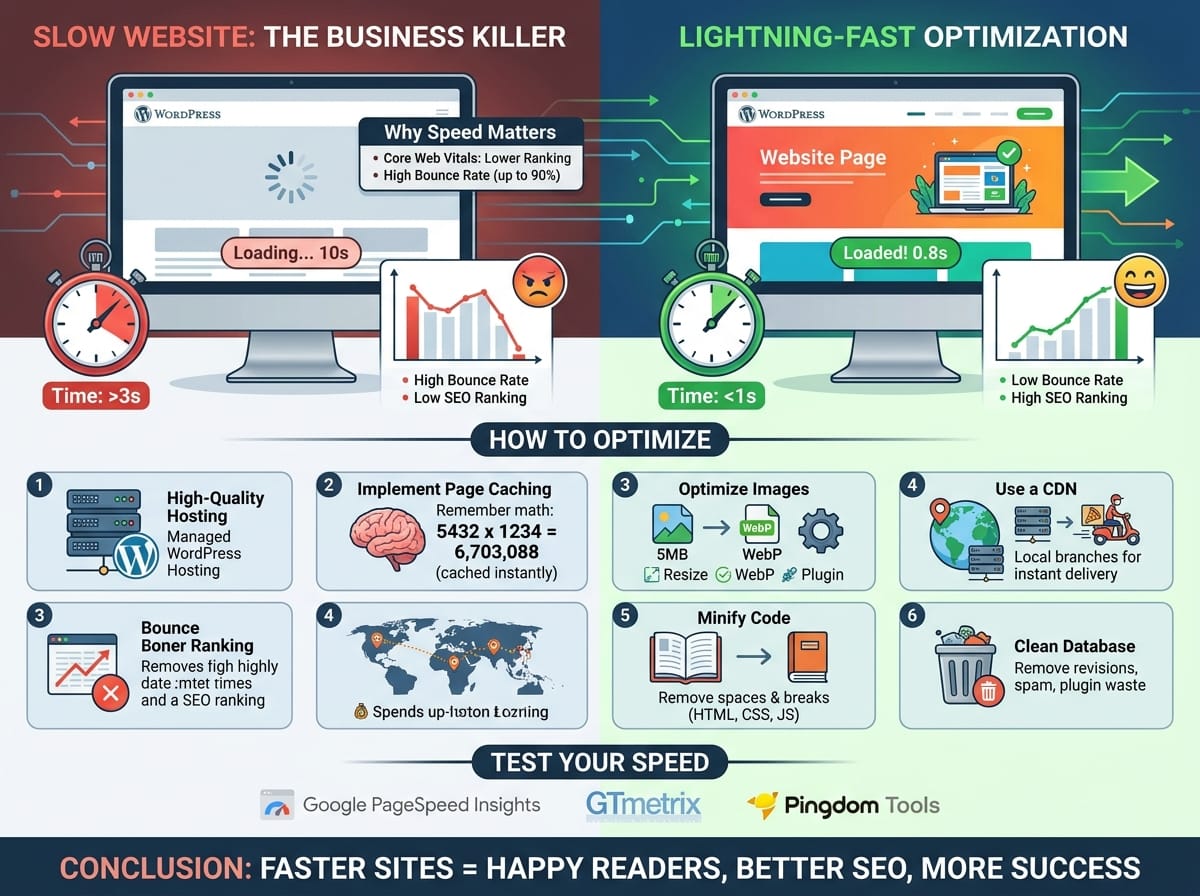
If your website takes more than three seconds to load, you are likely losing up to half of your visitors before they even see your content. In today’s fast-paced digital world, a slow website is a silent business killer. Not only does it frustrate your users, but search engines like Google actively penalize slow-loading pages.
In this guide, we will break down exactly how you can optimize your WordPress website to load at lightning speeds. We will cover everything from basic image optimization to more complex technical tweaks, explaining everything simply along the way.
Why Website Speed is Crucial for SEO and User Experience
Search Engine Optimization (SEO) is all about proving to search engines that your website is the best result for a user’s query. Speed plays a massive role in this evaluation.
The Google Ranking Factor
Google uses a set of metrics called Core Web Vitals to measure how quickly and smoothly a page loads. If your site is sluggish, Google will push it further down the search results, giving your faster competitors the top spots. A fast site equals higher rankings, which leads to more organic traffic.
Lowering Your Bounce Rate
The “bounce rate” is the percentage of people who leave your site after viewing only one page. If a page takes 5 seconds to load, the probability of a user bouncing increases by 90%. Speed keeps visitors engaged, reading your content, and buying your products.
How to Test Your Current WordPress Site Speed
Before you can fix the problem, you need to know where you stand. You shouldn’t just guess your site speed by loading it on your own computer, because your browser might have saved (cached) files making it appear faster than it really is.
Recommended Speed Testing Tools
Use these free tools to get an accurate measurement of your site’s performance:
- Google PageSpeed Insights: Gives you a score out of 100 for both mobile and desktop, directly from Google’s perspective.
- GTmetrix: Provides a detailed waterfall chart showing exactly which files are slowing your site down.
- Pingdom Tools: Great for testing how fast your site loads from different countries around the world.
Top Strategies to Speed Up Your WordPress Website
Now that you have your baseline score, let’s look at the most effective ways to speed up your website, starting with the highest-impact changes.
1. Invest in High-Quality WordPress Hosting
Your web host is the foundation of your website. If you are using cheap, shared hosting, your site is sharing resources (like memory and processing power) with thousands of other websites. Upgrading to Managed WordPress Hosting (like WP Engine or Kinsta) ensures your server is configured specifically for speed.
2. Implement Page Caching
Caching is one of the most powerful ways to speed up WordPress. You can easily add this using plugins like WP Rocket or W3 Total Cache.
ELI5: What is Caching?
Imagine I ask you: “What is 5,432 multiplied by 1,234?” You would have to grab a pen, do the long math, and it might take you a few minutes to give me the answer: 6,703,088. If I ask you the exact same question ten seconds later, you don’t do the math again. You just remember the answer and tell me instantly.
That is exactly what caching does. Normally, WordPress has to “do the math” by fetching data from a database and building the webpage every single time a visitor clicks a link. Caching saves the final, built webpage (the answer), so the next visitor gets to see it instantly without the server doing any heavy lifting.
3. Compress and Optimize Your Images
Large, unoptimized images are the number one cause of slow websites. A modern smartphone takes photos that are 5MB or larger. If you put three of those on a page, your visitor has to download 15MB of data just to read your article!
Examples of Image Optimization:
- Resize dimensions: Don’t upload a 4000-pixel wide image if your blog content area is only 800 pixels wide.
- Use next-gen formats: Convert your standard JPEGs and PNGs into WebP format. WebP images are often 30% to 50% smaller in file size without losing any visible quality.
- Use a plugin: Tools like Smush or ShortPixel automatically compress images the moment you upload them to your WordPress media library.
4. Use a Content Delivery Network (CDN)
A CDN, like Cloudflare or BunnyCDN, works alongside your web host to deliver your website files incredibly fast, regardless of where your visitor lives.
ELI5: What is a CDN?
Imagine you live in New York, and you order a pizza from a famous restaurant in Los Angeles. It’s going to take hours, maybe days, for that pizza to arrive. By the time it gets to you, it’s cold. But what if that LA restaurant opened up a branch in your local New York neighborhood? You’d get your pizza in 20 minutes, piping hot.
Your web host is like the original restaurant. If your host is in New York, a visitor from Australia will experience a slow website because the data has to travel across the globe. A CDN creates “local branches” of your website on servers all over the world. When an Australian visitor clicks on your site, the CDN serves them the files from a server in Sydney, making it load instantly.
Advanced Tips for Lightning-Fast Loading
Once you have the basics down, you can implement these technical tweaks to shave off those final few milliseconds.
Minify HTML, CSS, and JavaScript
Modern websites rely on code (HTML, CSS, and JS) to look good and function properly. Minifying code makes those files smaller so they download faster.
ELI5: What is Minification?
Imagine reading a book where every single sentence starts on a brand new page, and there are massive, double-spaced gaps between every word. The book would be 5,000 pages long and incredibly heavy to carry. If you removed all that blank space and crammed the text together, the story wouldn’t change, but the book would shrink down to 300 pages and be easy to carry.
Web developers write code with lots of spaces, line breaks, and comments so it is easy for humans to read. “Minifying” simply removes all those unnecessary spaces and line breaks. The computer can still read the code perfectly, but the file size becomes much smaller and faster to download.
Clean Up Your WordPress Database
Every time you save a draft, delete a plugin, or get a spam comment, data gets stored in your WordPress database. Over time, this database gets bloated, causing your site to slow down as it searches for the right information.
Use a plugin like WP-Optimize to routinely clear out post revisions, trashed comments, and leftover data from deleted plugins. Think of it like taking the trash out of your digital house so you have more room to walk around.
Conclusion
Improving your WordPress site speed is not a one-time task; it is an ongoing process. By upgrading your hosting, compressing your images, setting up caching, and utilizing a CDN, you will create a lightning-fast experience. This will keep your readers happy, significantly boost your SEO rankings, and ultimately drive more success for your online presence.