
The Challenge: Keeping Project Bluefin Pristine
Project Bluefin is a phenomenal, modern Linux operating system designed for reliability and ease of use. Because it is an immutable operating system, the core system files are locked away and kept safe from accidental breaks. This ensures your computer boots up perfectly every single time.
But there is a catch: what happens when you need a specific application, a niche developer tool, or a package from a completely different Linux distribution like Arch or Ubuntu? Installing them directly onto your host system defeats the purpose of an immutable OS and creates a tangled web of dependencies. This is exactly where Distrobox steps in to save the day.
What is Distrobox? (ELI5)
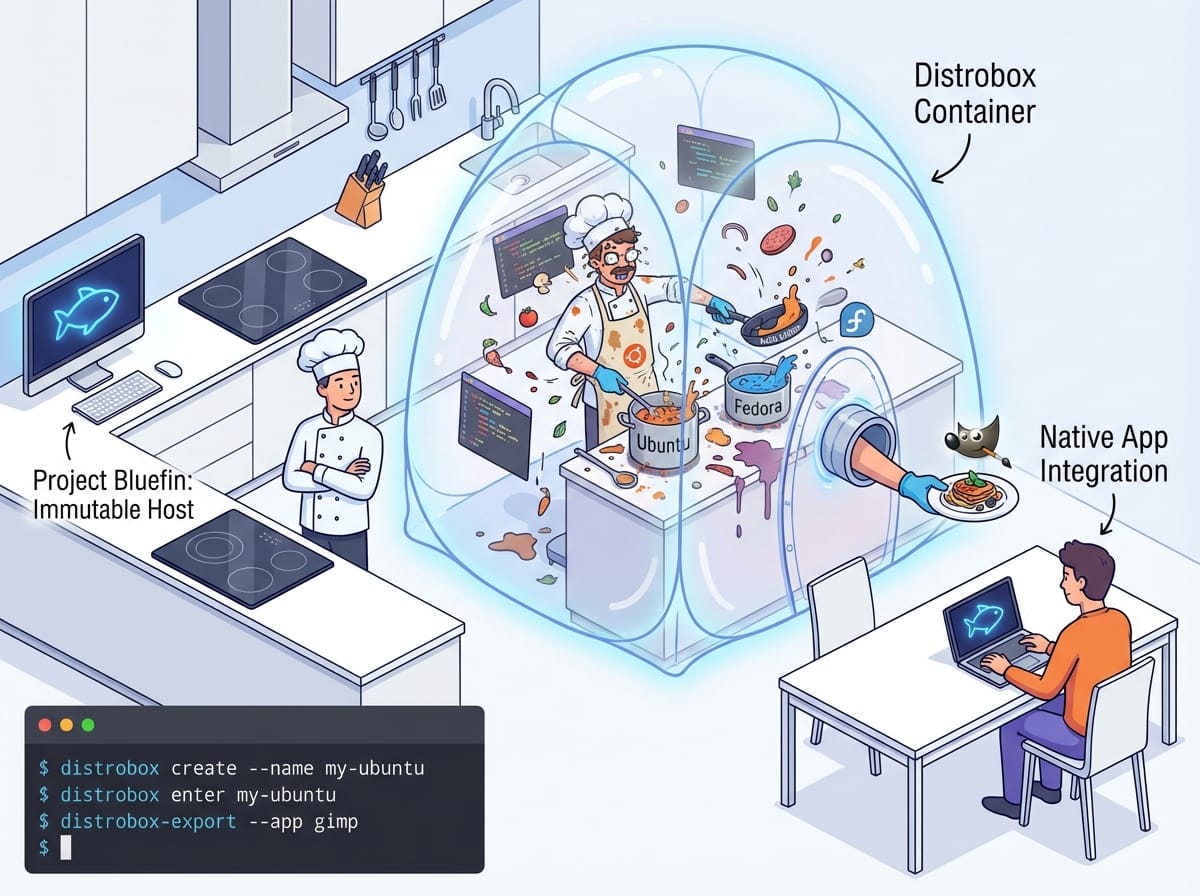
ELI5 (Explain Like I’m 5): Imagine your computer’s operating system is a brand new, perfectly clean kitchen. Normally, when you cook a massive meal (installing an app and all its dependencies), you get flour, oil, and sauce all over the counters.
Distrobox is like a magical, invisible cooking tent you pop up right in the middle of your pristine kitchen. Inside this tent, you can make as much of a mess as you want using ingredients from anywhere in the world (Ubuntu, Fedora, Arch Linux). When the food is ready, Distrobox hands the finished plate directly to your dining table (your main app menu). Your family gets to eat the delicious meal (use the app), but the messy pots and pans stay locked inside the magical tent. Your actual kitchen counters remain completely spotless!
In technical terms, Distrobox uses container technology (like Podman or Docker) to run a full Linux distribution inside your terminal, tightly integrated with your host system so apps feel entirely native.
Why Distrobox is the Secret to a Clean System
For Project Bluefin users, maintaining a clean system is the top priority. Distrobox offers several incredible SEO-friendly benefits for Linux users:
- Zero Host Clutter: Apps and their dependencies never touch your root file system.
- Ultimate Compatibility: Need an app that is only packaged for the Arch User Repository (AUR) or an old Ubuntu deb file? You can run it seamlessly on Bluefin.
- Easy Rollbacks: If an installation goes horribly wrong, you just delete the Distrobox container. Your main PC is completely unaffected.
- Native Integration: Unlike traditional virtual machines, Distrobox shares your home directory, audio, USB devices, and display. The apps look and behave like they are installed natively.
Getting Started: Setting Up Your First Distrobox
Creating your first containerized Linux environment is incredibly fast. Let’s walk through the process of setting up a Distrobox container.
Step 1: Creating a Container
Open your terminal. We are going to create a container running Ubuntu, which has one of the largest software libraries in the Linux ecosystem. Type the following command:
distrobox create --name my-ubuntu --image ubuntu:latestThis command downloads the latest Ubuntu image and creates an isolated container named “my-ubuntu”.
Step 2: Entering the Container
Once the setup is complete, you need to step inside your new container to start using it:
distrobox enter my-ubuntuYour terminal prompt will change. Congratulations! You are now typing commands inside an isolated Ubuntu environment, while safely sitting on your Project Bluefin host.
Installing and Exporting Apps (With Examples)
Running apps in the terminal is great, but the true magic of Distrobox is bringing graphical applications right to your main desktop environment.
Example: Installing a GUI Application
Let’s say you want to install an image editing tool like GIMP, but you specifically want the version from the Ubuntu repositories. While inside your my-ubuntu container, simply run the standard Ubuntu install command:
sudo apt update && sudo apt install gimpThe app will download and install alongside all its required dependencies, safely inside the container.
Exporting the App to Your Main Menu
You don’t want to open a terminal every time you want to edit a photo. Distrobox has an “export” feature that creates a standard shortcut in your Project Bluefin application launcher.
While still inside the container, run:
distrobox-export --app gimpThat’s it! If you press your Super (Windows) key and search for “GIMP”, you will see the icon appear. When you click it, it launches seamlessly, completely unaware that it’s running from inside a container.
Managing Your Distrobox Environments
As you become a Linux power user, you might want multiple containers for different workflows—perhaps an Arch container for gaming tools and a Fedora container for development. Managing them is simple.
Listing Your Containers
To see all the containers currently running or sleeping on your system, open your standard host terminal and type:
distrobox listThis will output a neat table showing the names, status, and base images of all your containers.
Stopping and Deleting Containers
If you no longer need an app, or if an environment becomes cluttered, you can simply throw the whole box away. First, stop the container:
distrobox stop my-ubuntuNext, easily delete it by running:
distrobox rm my-ubuntuJust like that, gigabytes of dependencies and apps vanish in a second, leaving absolutely zero trace on your Project Bluefin system.
Embrace the Containerized Future
By leveraging Distrobox, you unlock the absolute full potential of the Linux ecosystem without ever compromising the stability of Project Bluefin. You get the unshakeable reliability of an immutable host system, combined with the infinite software availability of Arch, Ubuntu, Fedora, and Debian. Start building your clean, containerized workspace today!