
Supercharge Your Bluefin Terminal: The Ultimate Guide to Fish, Starship, and Modern CLI Tools
If you are running Bluefin OS, you already know the benefits of a rock-solid, next-generation Linux desktop. But to truly maximize your productivity, you need a terminal environment that works for you, not against you. By installing the Fish shell and the Starship prompt, along with modern CLI (Command Line Interface) replacements, you can transform your terminal into an intelligent, visually stunning powerhouse.
This guide will walk you through completely overhauling your Bluefin terminal setup for maximum efficiency and aesthetics.
ELI5: What are Fish, Starship, and Bluefin?
If complex terminal jargon usually makes your eyes glaze over, let’s simplify this:
- Bluefin OS: Think of this as an indestructible, modern kitchen. It’s built to never break and comes with all the structural utilities you need built right in.
- Fish Shell: This is your highly intuitive sous-chef. When you start typing a command, Fish guesses what you want to do based on your history and completes your sentences. It comes with “batteries included,” meaning it works great out of the box without hours of tweaking.
- Starship Prompt: This is the heads-up display (HUD) on your chef’s hat. It constantly shows you important context about what you are working on right now (like what folder you are in, or what Git branch you are editing) using beautiful colors and icons.
Step 1: Installing Fish Shell on Bluefin
Bluefin OS is an atomic operating system, meaning the core system is immutable (read-only). To install command-line tools without cluttering your base system, Bluefin relies natively on Homebrew.
Open your terminal and run the following command to install Fish:
brew install fishOnce installed, you can make Fish your default shell. On Bluefin, the safest way to do this without modifying immutable system files is to change the setting directly in your default terminal emulator (like Ptyxis or GNOME Terminal). Simply open your Terminal Preferences, go to your Profile, check “Run a custom command instead of my shell,” and enter /home/linuxbrew/.linuxbrew/bin/fish.
Step 2: Installing Starship Prompt
Next, we will install Starship to make our newly installed Fish shell look incredible. Since we are already using Homebrew, installation is incredibly fast:
brew install starshipStep 3: Configuring Fish and Starship
Now that both tools are installed, we need to tell them to talk to each other. We do this by creating and editing configuration files.
Setting Up config.fish
The config.fish file is the brain of your shell. Every time you open a terminal, Fish reads this file. Let’s create it and initialize Starship.
Run the following command to open the configuration file in a text editor (we’ll use nano):
nano ~/.config/fish/config.fishPaste the following line into the file to activate Starship:
# Initialize Starship Prompt
starship init fish | source
Save and exit (Press CTRL+O, Enter, then CTRL+X).
Creating the starship.toml File
Starship is highly customizable. Its configuration lives in a file called starship.toml. Let’s set up a clean, minimal initial configuration.
nano ~/.config/starship.tomlPaste the following initial configuration, which gives you a clean, readable prompt with customized success and error symbols:
add_newline = true

[character]
success_symbol = "[➜](bold green)"
error_symbol = "[✗](bold red)"

[directory]
truncation_length = 3
truncate_to_repo = true
style = "bold blue"

[git_branch]
symbol = "🌱 "
style = "bold purple"
Step 4: Installing Next-Gen CLI Tools
To take full advantage of your new setup, we are going to replace decades-old terminal commands with their modern, faster, and smarter equivalents.
What Are These Tools? (ELI5)
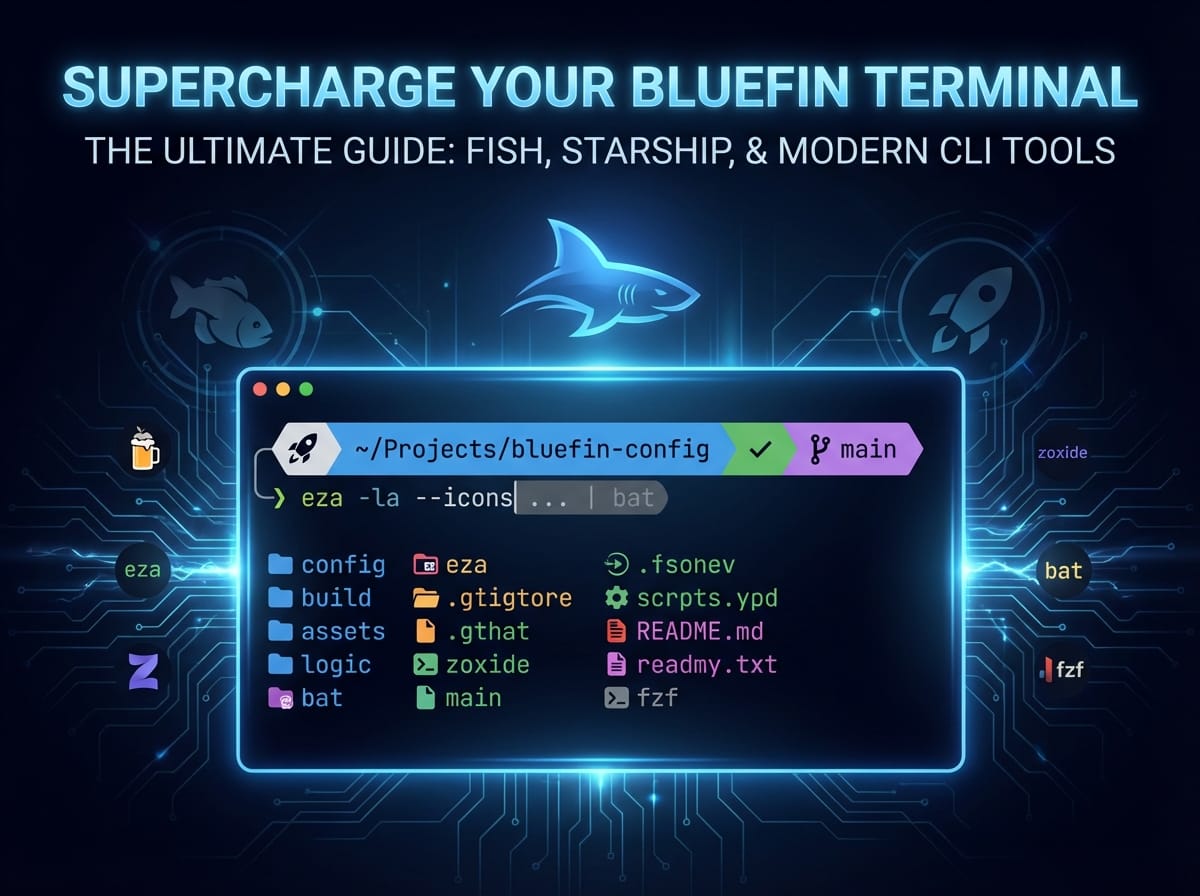
- eza (Improved
ls):lslists your files.ezalists your files but adds beautiful colors, file type icons, and easier-to-read sizing. - zoxide (Improved
cd):cdchanges folders.zoxideremembers which folders you visit most often. Instead of typingcd /var/www/html/project, you just typez projand it teleports you there. - bat (Improved
cat):catreads text files.batreads text files but adds syntax highlighting (colors for code) and line numbers. - fzf (Fuzzy Finder): A search engine for your terminal. It allows you to instantly search through thousands of files or past commands by just typing a few letters.
Installation via Homebrew
Run this single command to install all of these modern utilities on Bluefin:
brew install eza zoxide bat fzfSetting Up Fish Abbreviations
In standard shells, you use “aliases” to create command shortcuts. Fish uses Abbreviations. Abbreviations are superior because as soon as you hit the spacebar, your shortcut expands into the full command, ensuring you don’t forget the actual commands you are running.
Let’s add these abbreviations and initialize our new tools. Open your Fish config again:
nano ~/.config/fish/config.fishUpdate your file to look like this:
# Initialize Starship
starship init fish | source

# Initialize Zoxide (Improved cd)
zoxide init fish | source

# Initialize fzf
fzf --fish | source

# --- Abbreviations ---

# Improved ls (eza)
abbr -a ls 'eza --icons'
abbr -a ll 'eza -lh --icons'
abbr -a la 'eza -lah --icons'
abbr -a tree 'eza --tree --icons'

# Improved cd (zoxide)
abbr -a cd 'z'

# Improved cat (bat)
abbr -a cat 'bat'
Restart your terminal, and all your new commands and beautiful layouts will be active!
Step 5: Installing Fisher and the Best Plugins
Just like WordPress has plugins, the Fish shell has plugins. To manage them, we use a plugin manager called Fisher.
How to Install Fisher
Run this command in your Fish shell to download and install Fisher instantly:
curl -sL https://raw.githubusercontent.com/jorgebucaran/fisher/main/functions/fisher.fish | source && fisher install jorgebucaran/fisherTop Fisher Plugins to Install
Now that Fisher is installed, here are the absolute best plugins to supercharge your workflow. You can install them by running the fisher install command.
- PatrickF1/fzf.fish:
Command:fisher install PatrickF1/fzf.fish
Why you need it: This creates incredibly deep integration between Fish andfzf. You can pressCTRL+Rto visually search your command history, orCTRL+ALT+Fto search for files with previews. - franciscolourenco/done:
Command:fisher install franciscolourenco/done
Why you need it: Ever run a long command, switched to your web browser, and forgot about it? The ‘done’ plugin sends a desktop notification to your Bluefin OS the moment a long-running command finishes. - jorgebucaran/autopair.fish:
Command:fisher install jorgebucaran/autopair.fish
Why you need it: When you type an opening quote"or bracket[, this plugin automatically generates the closing one and places your cursor inside, just like a modern code editor. - nickeb96/puffer-fish:
Command:fisher install nickeb96/puffer-fish
Why you need it: It creates smart text expansions. Typing...automatically expands to../..(going up two directories), saving you countless keystrokes when navigating your system.